
Note: These steps were verified on a pixel 6A running android 16. If you have a different version, your steps may be different.
Staff and Students Log In Steps
To connect to the greenwood wifi network, please complete the following steps if you are a staff / students :
1. Access Wifi setting in Android settings
2. Select the GCS network
3. Ensure the values for the network fields (see Figure 1 below):
a. EAP Method is "PEAP"
b. Phase 2 authentication is "MSCHAPV2"
c. CA certificate is "Trust on First Use"
d. Identity and Anonymous Identity is your greenwood username : "firstname.lastname" (if your name is John Doe, your username should be john.doe)
e. The password will be your greenwood account password
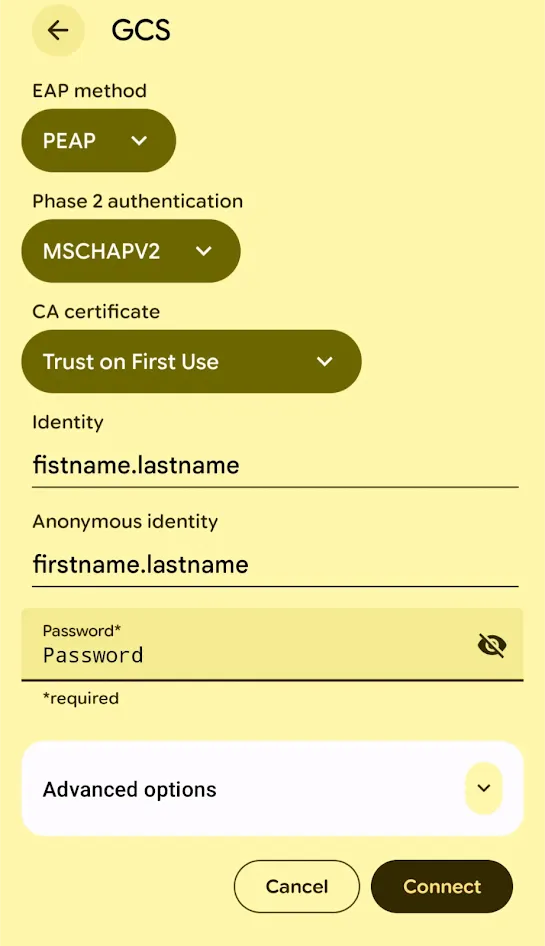
Figure 1
4. Once the following fields are filled out. Connect to the Wifi Network. The phone will then prompt you to trust the Network Credentials which you will have to accept as well (see Figure 2).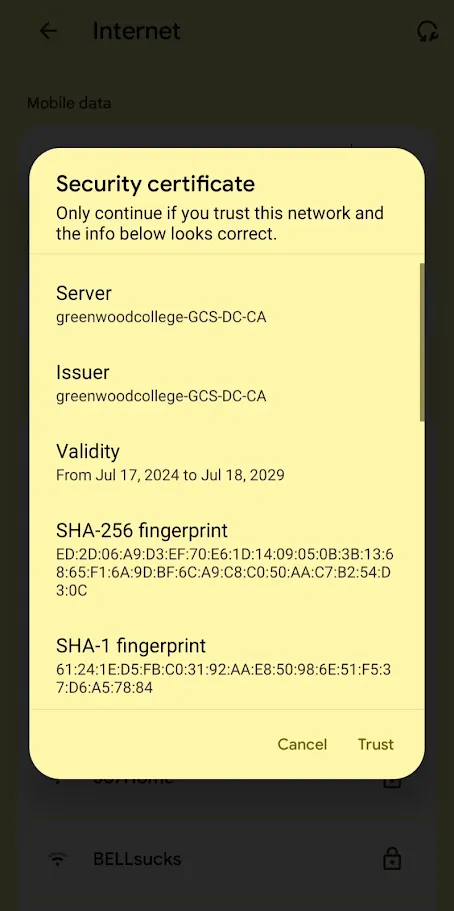
Figure 2
5. After these steps, you should be connected to the Wifi Network
Guest Wifi Log In Steps
To connect to the greenwood wifi network, please complete the following steps if you are a staff / students :
1. Access wifi setting in Android settings
2. Select the GCS Guest network
3. It will prompt you to log in at which point you fill in the credentials given to you (see Figure 3). Afterwards, you should be able to access the wifi network.
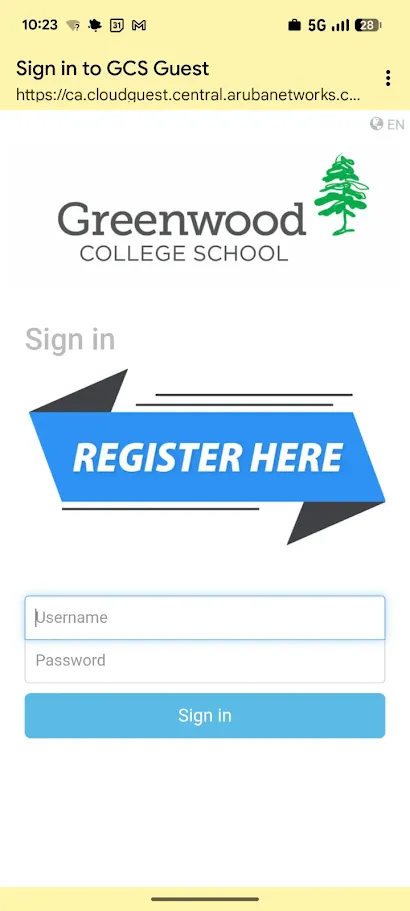
Figure 3