
Student Installation of Exam.net
TABLE OF CONTENTS |
MacOS

Steps to install the Exam.net app on a Mac device:
Click here or search for Exam.net or Examnet in the App Store.
Download the app.
If the above Exam.net app does not work, download and install SEB from here.
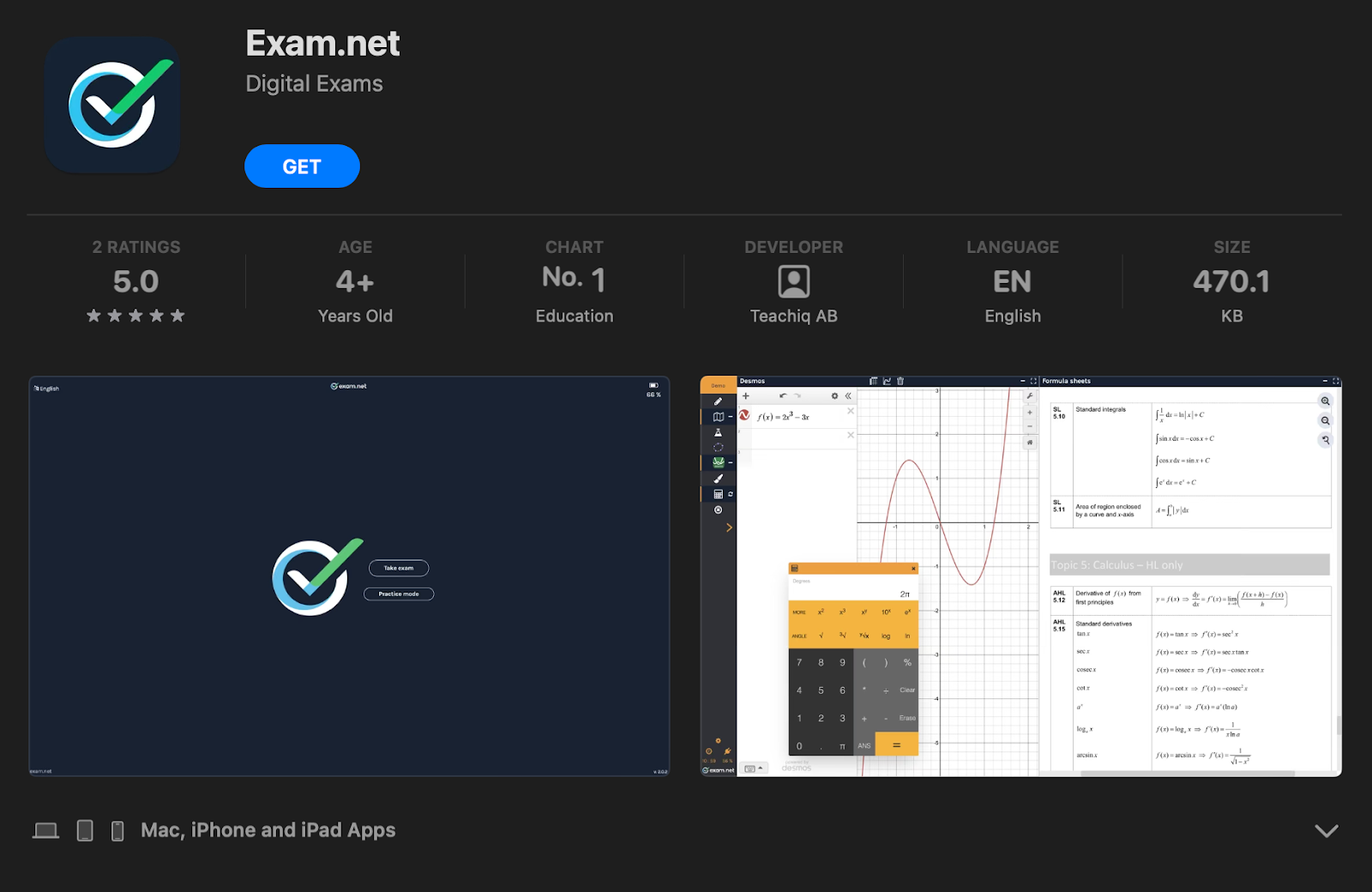
Built-in practice mode: The app also includes a built-in practice mode where you can test the exam environment without needing an exam key
Students will never need to manually launch SEB. Students enter the exam key on Exam.net’s start page.
Requirements: Version 2.0.12 and macOS 14.3.1 or above (recommended). MacOS Catalina (10.15) to MacOS 14.3.0 and higher is supported.
Video: Installation Process Mac OS for exam.net (8 seconds)
Microsoft Windows

Steps to install Safe Exam Browser (SEB) on a Windows device:
Click here to download SEB version 3.10.0 for your PC.
Double-click the installation file and follow the simple steps to complete the installation.
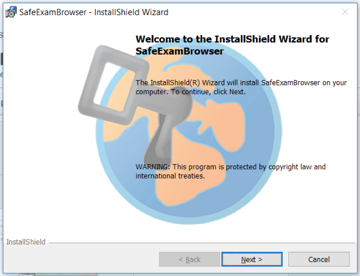
Built-in Practice mode: Click here to test your SEB installation. (If the link doesn't work, try uninstalling and installing SEB again)
Students will never need to manually launch SEB. Students enter the exam key on Exam.net’s start page.
Requirements: Windows 10 (Version 1803 or newer) and Windows 11 with SEB Version 3.10.0. Supported: Versions newer than and including 3.5.0. Versions older than 3.5.0 are not supported.
Video: Installation Process Windows PC for exam.net (37 seconds)